WooCommerce Tips
Recommended WooCommerce settings for your buyback store.
WooCommerce Configuration for Buyback#
Gyta Buyback works on top of WooCommerce. Below are the recommended WooCommerce settings to optimize your buyback store.
Shipping: Free Shipping Zone#
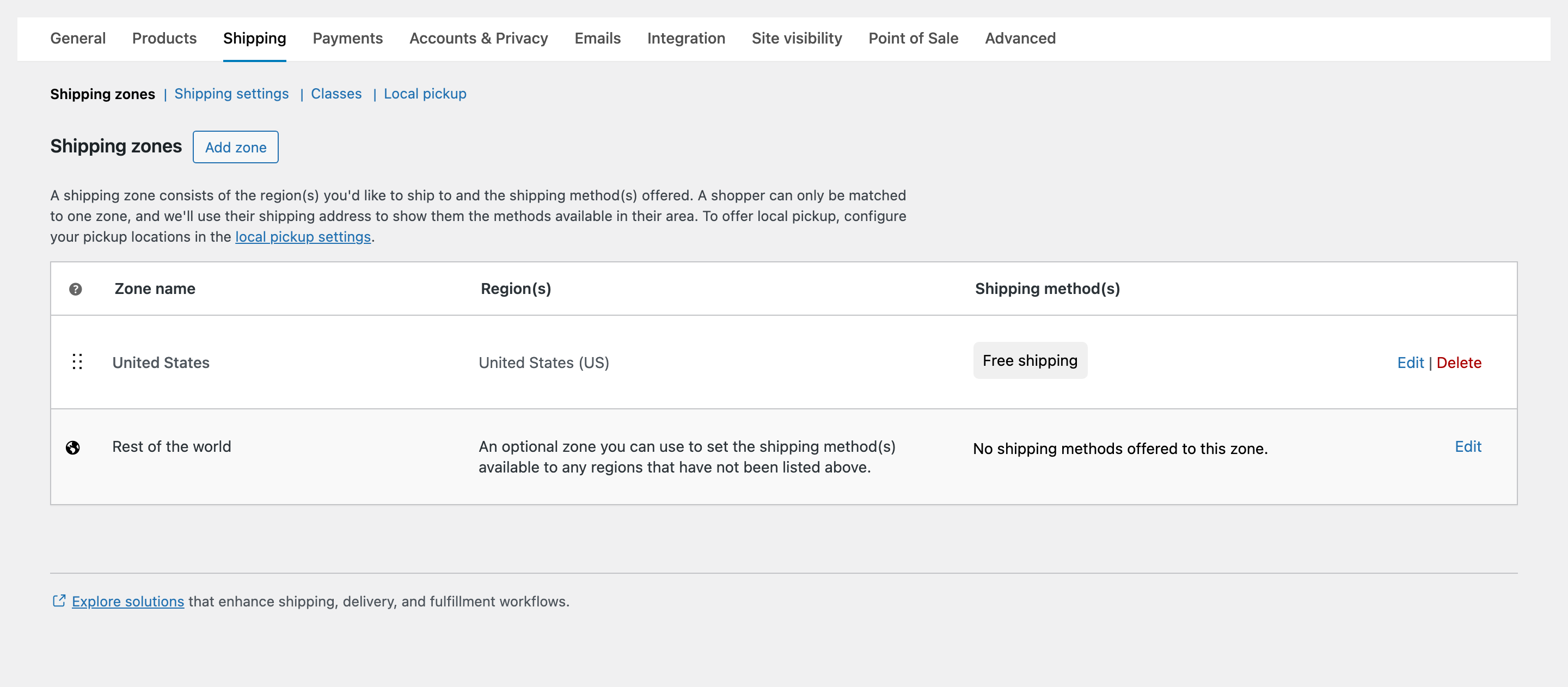
Navigate to WooCommerce → Settings → Shipping. Create a shipping zone with Free Shipping for your service area. It is standard practice in buyback to offer free shipping — the cost is covered through EasyPost labels.
Optional: Local Drop-off#
To offer a local drop-off option, add a second zone limited to specific postcodes and give it Local pickup, renamed to “Local Drop-off”. Put it above the wider zone in the list.
Arrange shipping zones from most geographically specific to least specific so WooCommerce picks the right zone.
Payment Methods#
Navigate to WooCommerce → Settings → Payments. Gyta Buyback adds reversed payment methods where the store pays the customer. Enable only the methods you plan to support.
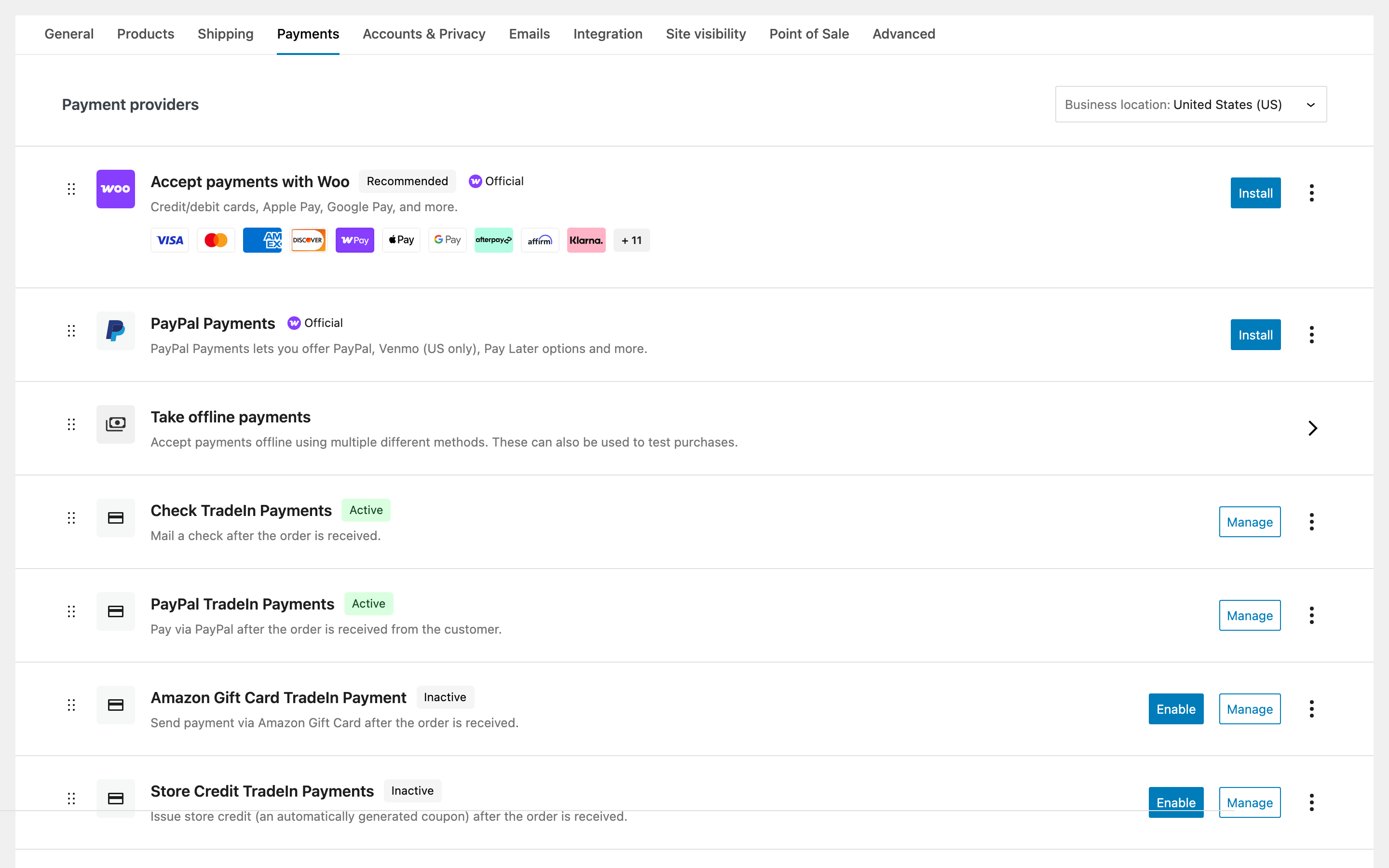
Free: PayPal, Check, Amazon Gift Card, Store Credit. PRO: Zelle, Venmo, Interac e-Transfer, UK Bank Transfer, ACH, Crypto/Stablecoin.
PayPal and Wise are the two that pay out automatically. The rest are recorded against the order so you can pay them your own way.
Guest Checkout#
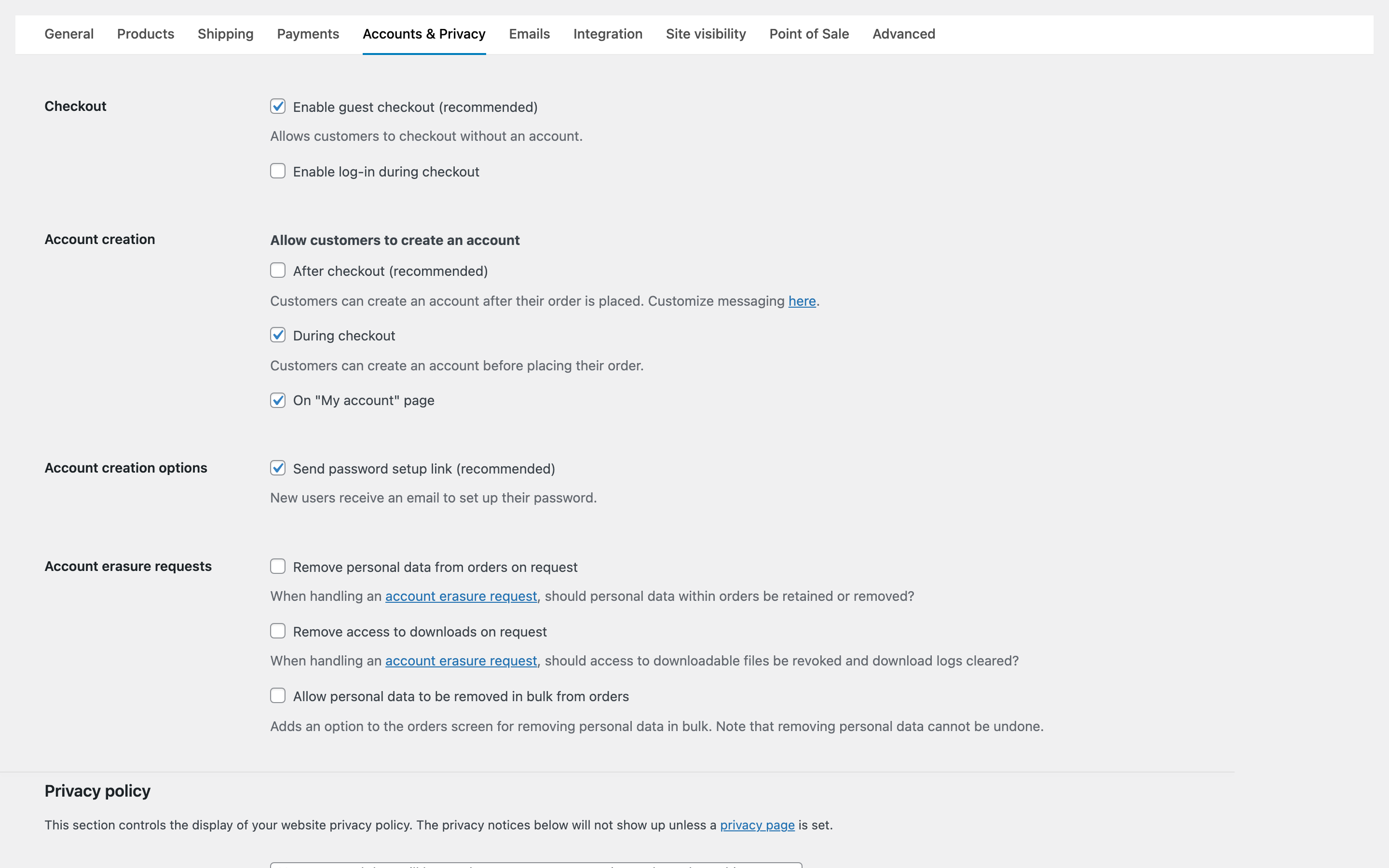
Under WooCommerce → Settings → Accounts & Privacy, we recommend enabling guest checkout to reduce friction in the trade-in process.
Email Notifications#
Under WooCommerce → Settings → Emails, Gyta Buyback customizes several templates:
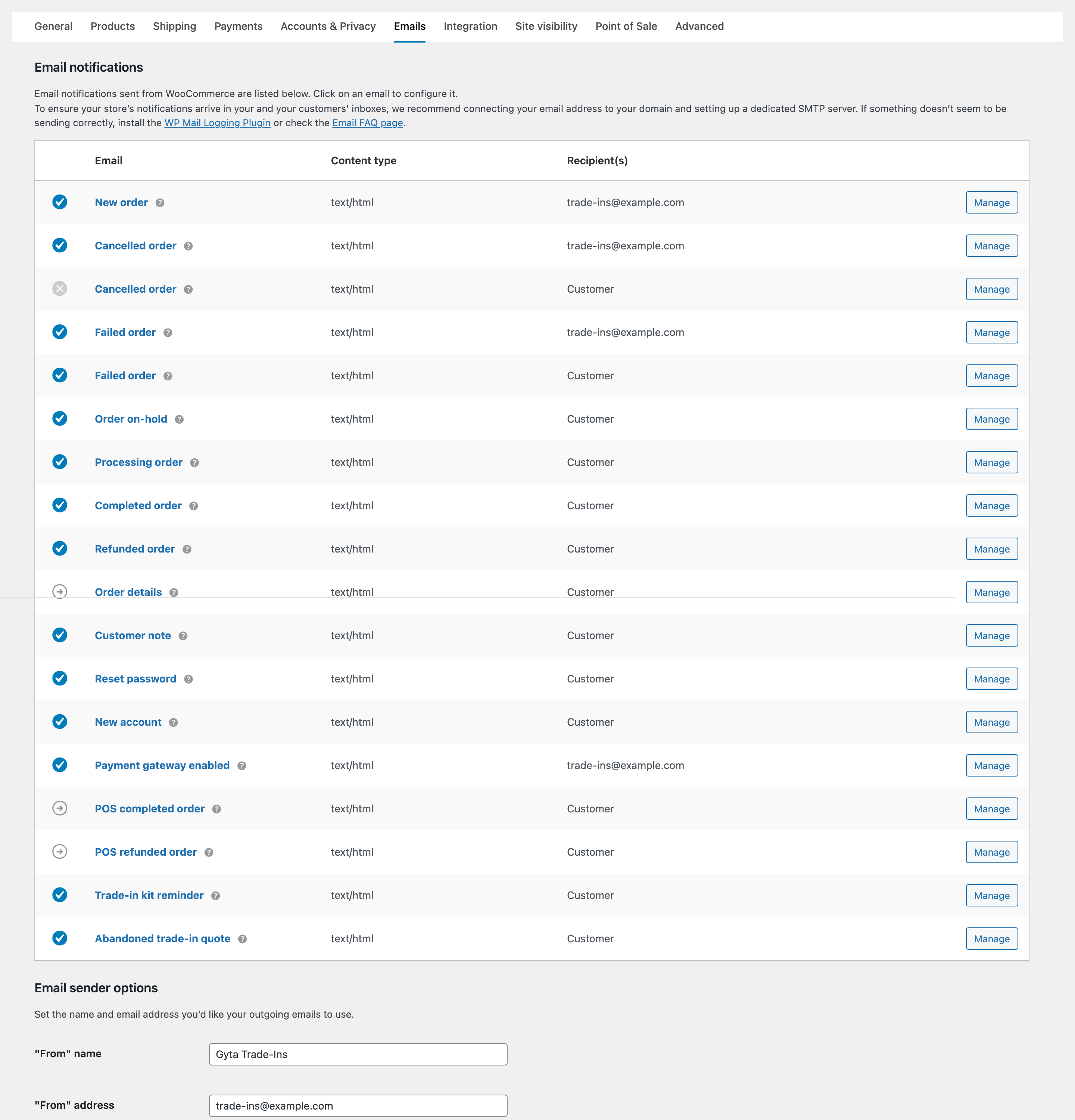
- Order Created — sent when the customer submits a trade-in (includes the shipping label or QR code).
- Processing — sent when you receive their items.
- Completed — sent when payment is on its way.
- Trade-in kit reminder PRO — nudges a customer who has a kit but has not posted it back.
- Abandoned trade-in quote PRO — follows up on a quote the customer never completed.
General Store Settings#
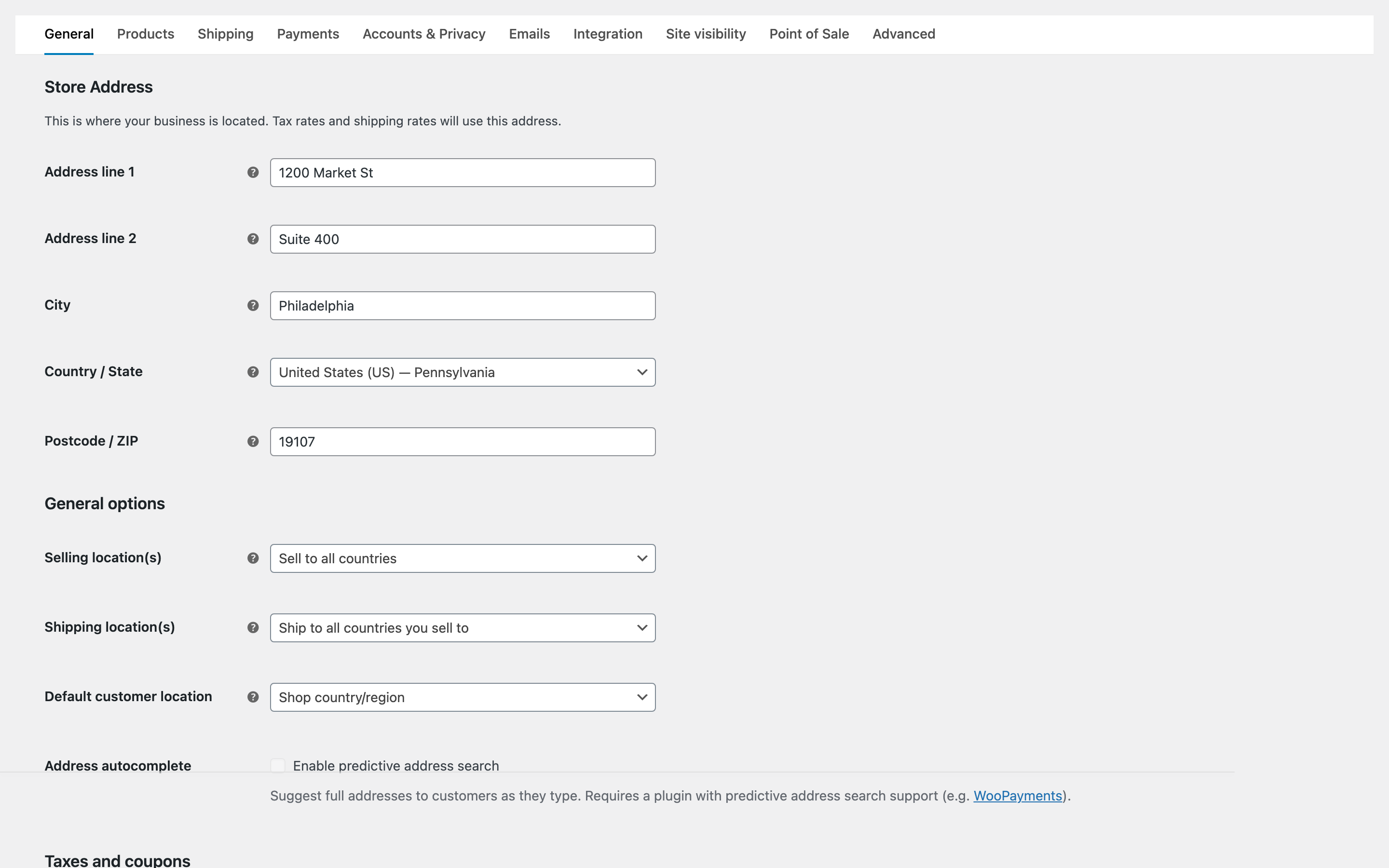
Under WooCommerce → Settings → General, set your store address and currency. For the Selling location, select where you accept buyback items from.