
Net Settlement — Trade In Toward a Purchase
Apple/Samsung-style: buy a new device, trade in the old one, pay the difference.
Net Settlement (Premium)#
Net Settlement lets a customer buy a new device and apply trade-in credit for their old one in the same purchase — so they pay only the difference. It's how the big retailers run their upgrade programs.
This is a premium Store Mode. It's built for phone and electronics retailers who want an Apple- or Samsung-style "trade in and upgrade" checkout on their own store.
Store Mode is a premium feature. Buyback is the free default. Dual and Net Settlement are premium.
When to use it#
- You sell new devices and want customers to trade in their old one toward the purchase.
- You run an upgrade program and want the trade-in credit applied instantly at checkout.
- You want a familiar "pay the difference" flow that works in both classic and block checkout.
If you'd rather keep purchases and trade-ins as separate carts, use Dual instead. For an overview of all modes, see Store Modes.
How it works#
- The customer adds a normal, sellable product (the new device) to the cart.
- A selector appears: "Have a device to trade in? Get instant credit."
- They pick their old device and its condition, and can optionally enter an IMEI or serial number.
- The trade-in value is applied as a discount on the order.
- The customer pays the difference with any normal payment method.
- They send back the old device using the return label (see below).
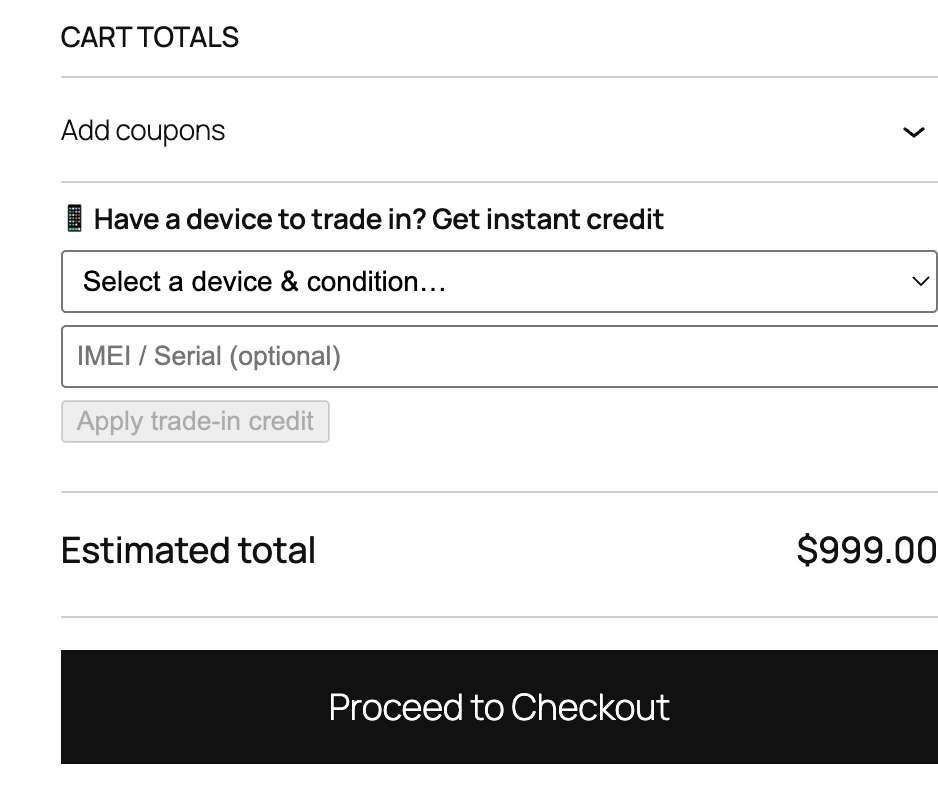
Which devices can be traded in comes from your Trade-In Catalog. The new products are your normal sellable products.
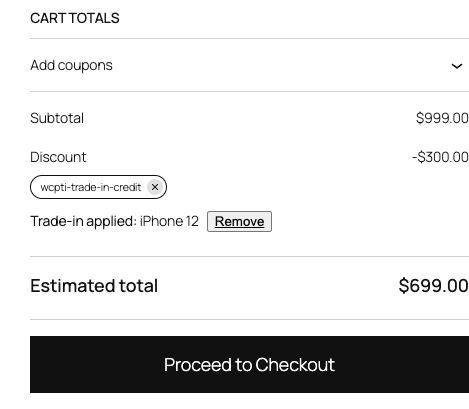
Return shipping (Apple vs Samsung style)#
You choose how the customer sends the old device back. Set this under Net: return shipping label:
- Apple-style — a prepaid return label is included with the new item in the box.
- Samsung-style — a prepaid return label is emailed to the customer at checkout.
- Manual — you handle the return label yourself, outside the plugin.
Set Net: days to return device (default 14) to control how long the customer has to mail the old device back.
If the trade-in is worth more than the order#
Sometimes the trade-in credit is larger than the cart total. Pick what happens with the leftover under Net: when trade-in value exceeds cart total:
- Coupon for the difference — the order goes to zero and a coupon is issued for the remaining value, to spend on a future purchase.
- Balance to zero — the credit is capped at the cart total, so the customer pays nothing and no leftover is carried over.
Set it up#
- Go to the Gyta Buyback → Settings → Checkout tab and set the Store Mode to Net Settlement.
- Add the devices you accept to the Trade-In Catalog (with their conditions and values).
- Open the Gyta Buyback → Settings → Checkout tab and configure:
- Net: show trade-in selector on — Cart, Checkout, or both.
- Net: return shipping label — Apple-style, Samsung-style, or Manual.
- Net: days to return device — how long the customer has to send the old device back (default 14).
- Net: when trade-in value exceeds cart total — Coupon for the difference or Balance to zero.
- Save, then test a checkout: add a sellable product, use the trade-in selector, and confirm the credit applies and you pay only the difference.
The trade-in selector works in both classic and block (Gutenberg) checkout, so it fits whichever checkout your store uses.
Related#
- Store Modes overview — compare all three modes.
- Dual (Buy + Trade-In) — separate purchase and trade-in carts.
- Trade-In Catalog — the devices offered as trade-ins.