
Automatic Payouts
Pay trade-in customers automatically via PayPal Payouts or Wise.
Automatic Payouts#
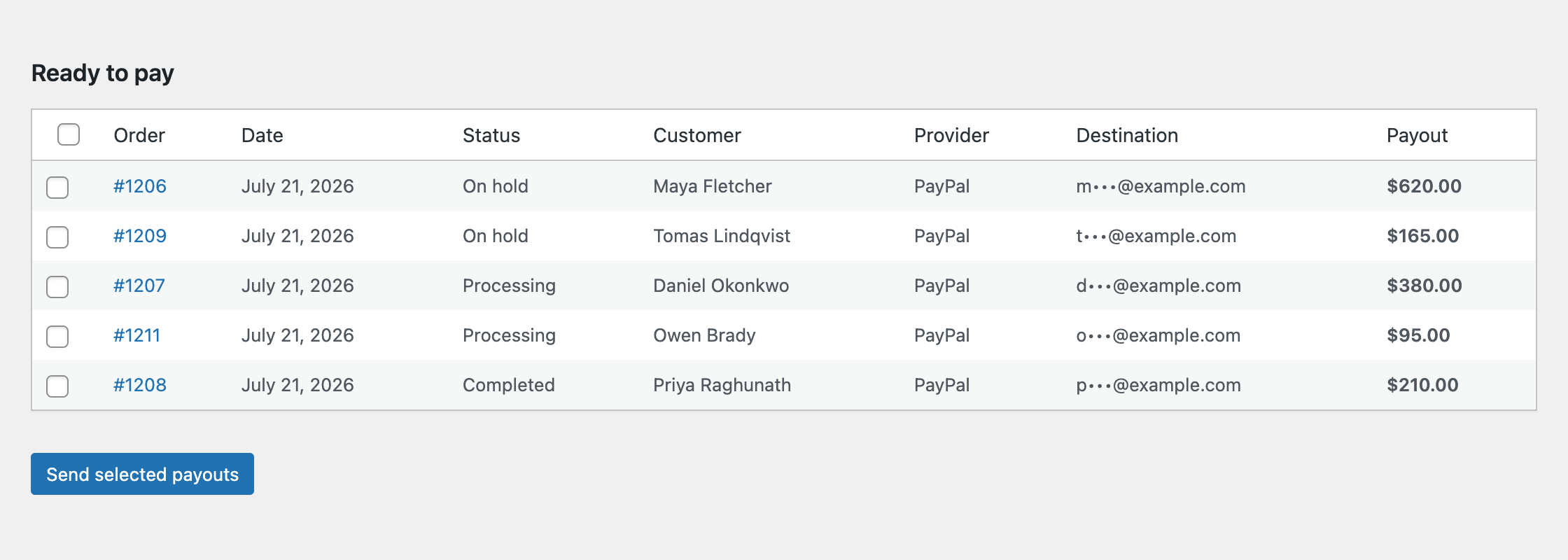
Automatic Payouts sends the actual money for a trade-in order straight from WordPress, so you never have to log into PayPal or your bank and re-type an amount. Orders that are ready to be paid collect in a Ready to pay queue: tick the ones you want, click once, and the plugin sends them in the background and keeps checking with the provider until each one is confirmed.
Two providers are supported. PayPal Payouts pays customers who chose the PayPal trade-in payment method at checkout, and Wise pays UK Bank Transfer orders out of your Wise balance. Every payout is written into the order as a note, and the whole history exports as a bookkeeping CSV.
Automatic Payouts is a PRO feature. Free users see a locked preview on the Payouts tab in plugin settings.
Turning It On#
Everything lives on one screen: Gyta Buyback → Settings → Payouts. The settings form sits at the top of the tab, the queue underneath it.
To pay by PayPal, fill in the Payout providers section:
- PayPal Payouts — tick "Enable sending payouts through the PayPal Payouts API"
- PayPal Client ID and PayPal Client Secret — from your REST app on developer.paypal.com. The app must have Payouts enabled, and your PayPal business account must be approved for Payouts
- PayPal sandbox mode — on by default. Turn it off when you want to send real money
To pay UK Bank Transfer orders by Wise:
- Wise — tick "Enable sending UK Bank Transfer payouts from your Wise balance"
- Wise API token — a full-access personal API token from your Wise business account
- Wise profile ID — your Wise business profile ID (Settings → Business profile in Wise)
- Wise sandbox mode — on by default, same as PayPal
Two more settings control the automation itself:
- Send automatically on completion — queues the payout the moment an order is marked Completed. This is off by default: real money stays manual until you choose otherwise
- Complete order when paid — marks the order Completed once the provider confirms the money was sent. This one is on by default
Until at least one provider is enabled and its credentials are filled in, the queue shows a note instead of orders. A sandbox warning banner appears above the queue for as long as either configured provider is in test mode.
Which Orders Show Up#
An order appears in Ready to pay only when all of the following are true:
- Its payment method is one you have configured — PayPal trade-in payments (paid via PayPal Payouts) or UK Bank Transfer (paid via Wise)
- Its status is On hold, Processing, Customer approved, or Completed
- The payout details captured at checkout are present and usable — a PayPal address on the order, or a name plus a UK sort code and account number (an IBAN is accepted too). Wise details are validated up front; the PayPal address only has to be non-empty here, and is checked for being a real email address when the payout is actually sent
- It has not already been queued, sent, paid, or left unclaimed, and is not flagged for manual review after an ambiguous failure
The amount paid is the order total, so if you re-quote a device after inspection the payout follows the revised figure automatically. The destination is always shown masked — b•••@gmail.com or ••••6789 — never in full.
How It Works Day to Day#
The normal rhythm looks like this:
- Tick the orders you want to pay in Ready to pay and click Send selected payouts. A confirmation box tells you how many payouts and the total before anything leaves your account
- Each order is queued and handed to the background scheduler, which sends it within about a minute — the page does not sit and spin while money moves
- The plugin then keeps asking the provider what happened, backing off as it goes: after 2 minutes, 10 minutes, 30 minutes, 2 hours, 6 hours, then once a day
- When the provider confirms, the order gets a customer-visible note ("Your payout of … has been sent via …"), which WooCommerce emails to the customer, and the transaction ID is stored on the order
- If Complete order when paid is on, the order moves to Completed at that point
To pay a single order without going to the queue, open it in WooCommerce and choose "Send payout now" from the order actions dropdown. The order screen also shows a read-only Payout line with the status, amount, masked destination, transaction ID, and the last error if there was one.
Payout Statuses#
The Recent payouts table below the queue shows every order that has ever had a payout, with one of these states:
- Queued — accepted, waiting for the background job
- Processing — sent to the provider, awaiting confirmation
- Paid — the provider confirmed the money went out
- Unclaimed — PayPal only. The customer has no PayPal account for that email address. PayPal holds the money for 30 days and then returns it to you automatically; the plugin keeps checking daily
- Failed — the provider rejected it, or something went wrong. The reason is stored on the order
Failed and unclaimed rows get a button in the last column. A plain Retry resends under a fresh key. Cancel & resend (unclaimed PayPal payouts) pulls the claimable money back at PayPal first and aborts if PayPal does not confirm the cancellation. Verify & retry appears when the plugin could not tell whether the money went out — you must check the provider dashboard yourself before confirming, because that is the one case where a resend could genuinely pay twice.
Accounting Export#
At the bottom of the Payouts tab, Accounting export downloads payout history as a QuickBooks-friendly CSV (trade-in-payouts.csv) for your bookkeeper. You can set a From and To date — that range filters on the order date, not the payout date — and choose Paid only, which is ticked by default.
Each row carries the date, order number, customer, a fixed account name (Trade-in Purchases), method, masked destination, amount, currency, status, transaction ID, the devices and their condition, and a VAT margin scheme flag. For paid rows the date is the day the payout completed, not the day the order was placed.
Good to Know#
- Both providers start in sandbox mode. "PayPal sandbox mode" and "Wise sandbox mode" default to on, so your first sends are test transactions until you turn them off.
- Automatic sending is off by default. "Send automatically on completion" defaults to off — real money is manual unless you deliberately switch it on.
- Payouts never happen instantly on click. They are queued and executed by WooCommerce's background scheduler, normally within a minute. If your site's scheduler is stalled, payouts will sit in Queued.
- PayPal pays to an email address only. An order with no PayPal address at all never appears as payable. An address that is present but is not a valid email does show up in the queue — it is rejected when the send runs, and the order ends in Failed with "No valid PayPal email address on this order."
- Wise pays from your existing Wise balance. There is no currency conversion — the transfer is quoted in the order currency. If the balance is short, the payout fails with a message telling you to top up and retry.
- Wise needs valid UK bank details or an IBAN. A 6-digit sort code plus an 8-digit account number, or an account number that looks like an IBAN. Anything else keeps the order out of the queue.
- Unclaimed PayPal money is real money. An unclaimed payout is never simply sent again — it does not appear in Ready to pay, and every resend path cancels it at PayPal first and stops dead if PayPal does not confirm the cancellation, so the customer can never end up claiming both.
- Ambiguous failures are quarantined on purpose. If a network timeout or crash means the plugin cannot prove the money did not go out, the order is flagged for review and refuses every automatic resend until you confirm at the provider. This is deliberate: it is the difference between paying once and paying twice.
- Checking stops after 30 days. If a payout has not reached a final state within 30 days of being queued, the plugin gives up and marks it failed with a note to verify it in the provider dashboard.
- Nothing is left stranded silently. An hourly background sweep re-checks payouts that were left mid-flight by a crashed job or a server restart, and adds an order note when it does. It looks at the 50 most recent unfinished payouts on each run.
- A retry re-reads the bank details. Retrying a Wise payout drops the stored recipient and rebuilds it from the order, so fixing a wrong account number on the order and retrying does the right thing.
- The queue is paginated at 20 orders per page. Use the Newer / Older links under each table; the Ready to pay and Recent payouts tables page independently.
- PayPal must be approved for Payouts. A REST app without the Payouts feature, or a business account not approved for it, produces a 403 and a failed payout — not a silent skip.