
My Trade-ins Tab
A customer account tab with live status, labels, tracking and offer approval.
My Trade-ins Tab#
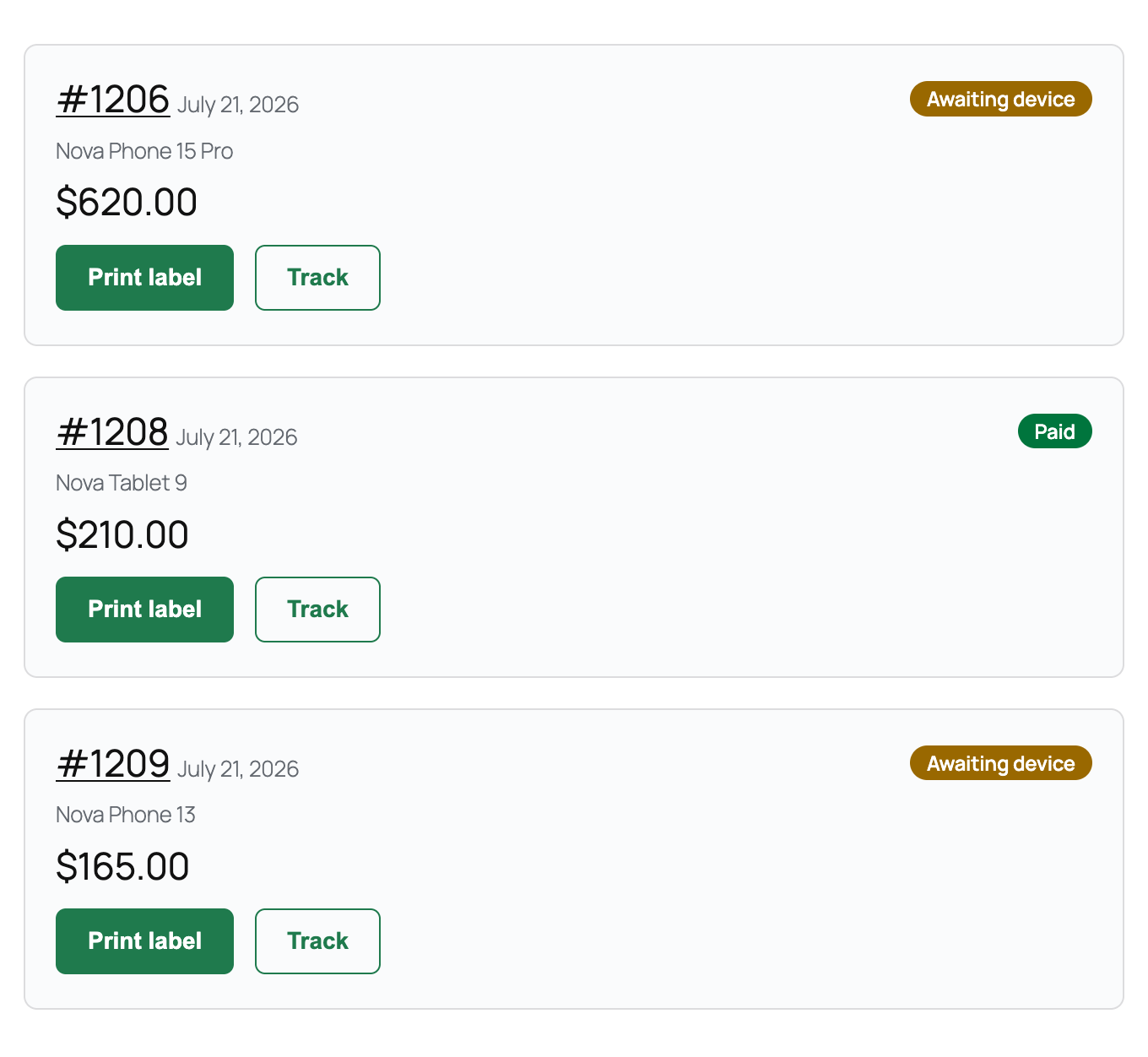
My Trade-ins adds a dedicated tab to the customer's WooCommerce account page, directly below Orders. Each trade-in gets its own card showing a plain-English status chip ("Kit on the way", "Action needed: review offer", "Paid"), the devices being sent in, the offer amount, and buttons to print the shipping label, track the parcel, or pull up the drop-off QR code.
It exists so returning customers stop emailing you "where is my money?" — instead of hunting through generic order history, they see exactly where every device stands and can approve or decline a revised offer without leaving the page. Added in version 1.6.1.
My Trade-ins is a PRO feature. On the free plan the tab is hidden from customers entirely — only users who can manage WooCommerce see it, and they get a locked preview with an upgrade link. Customers are never shown an upsell.
Turning It On#
There is no switch for the tab itself. With Pro active it appears automatically for every logged-in customer at My Account → My Trade-ins (URL: /my-account/trade-ins/).
The one related setting is the approve/decline buttons. Turn on Customer Order Approval in Gyta Buyback → Settings → Checkout — described there as "Require customers to approve received order changes before payment is processed". It is off by default. Without it, cards still show status, labels and tracking, but no approval buttons.
How It Behaves Day to Day#
Each card is built in this order:
- Order number — linked through to the normal WooCommerce order page — followed by the order date.
- Status chip — "Awaiting device", "Kit on the way", "Action needed: review offer", "Offer approved", "Offer declined", "Processing", "Paid" or "Cancelled", color-coded (amber for in-progress, red for action needed, green for approved and paid, gray for declined and cancelled).
- Device names pulled from the order's line items — plus the trade-in lines on a net-settlement order, which are not ordinary line items.
- Offer total in the order's own currency.
- Quote lock line, when a quote expiry is in force — either "Your offer of X is locked until [date]" or, once past it, a note that an updated offer is coming.
- Buttons: Print label, Track, QR code, plus Approve / Decline when an offer is waiting on the customer.
Trade-ins are listed newest first, ten to a page, with Newer and Older links at the bottom. If the customer has never traded anything in, they see "No trade-ins yet. When you send us a device, you'll see its progress here."
When a customer approves or declines a revised offer, the form posts to that order's confirmation page — so they land on the standard order-received page and the order status moves to Offer approved or Offer declined, exactly as it would from the emailed link.
Good to Know#
- Only account orders appear. The list is built from orders attached to the logged-in customer, so trade-ins placed as a guest never show up here.
- Which orders are listed depends on your store mode. In Buyback mode every order in the account is a trade-in, so all of them are listed. In Dual and Net modes only orders flagged as trade-ins are shown — older orders placed before you switched modes may not carry that flag and can be missing from the list.
- Buttons only appear when the data exists. Print label shows once an EasyPost label has been bought, Track once EasyPost has returned a public tracking URL, and QR code only when the carrier actually issued a QR drop-off form. All three open in a new browser window.
- Approve / Decline are doubly conditional. They appear only when the order is in the "Action needed: review offer" state and Customer Order Approval is enabled in settings. The Approve button prints the current order total on itself, so the customer confirms the exact figure.
- The approval token stays valid for 30 days. The security token on those buttons is deliberately long-lived, so a customer who leaves the page open or comes back a few weeks later does not hit an expired-link error. That is separate from quote expiry — if the offer's lock window has lapsed, the approval is still refused and you re-quote first.
- Long orders are trimmed. Only the first four device names are printed on a card; the full list is on the linked order page.
- Ten per page. Paging appends the page number to the URL (
/my-account/trade-ins/2), and the Older link only appears when the current page is full. - Permalinks refresh themselves. The tab's URL is registered as a WooCommerce account endpoint and the rewrite rules are flushed once per plugin version, so an upgrade does not leave a dead link. If the tab still 404s on an unusual setup, re-save Settings → Permalinks once.
- Custom order statuses still display. Any status outside the mapped set falls back to its normal WooCommerce status name in a gray chip rather than breaking the card.