
Device Details
Capture condition, IMEI/serial and notes for every device traded in.
Device Details#
Device Details asks the customer to record a condition, an IMEI / serial number and free-text notes for each item they are trading in, and writes those answers onto the order line item. They then show up on the order screen, in your order emails, on the thank-you page and in the customer's own order view — no separate spreadsheet, no email thread.
The practical reason to turn it on is disputes and matching. When a box arrives, the serial on the device tells you which order it belongs to, and the condition the customer selected is the claim you inspect against. If a customer says a phone was "Like New" and it arrives cracked, the claim is on the order in writing.
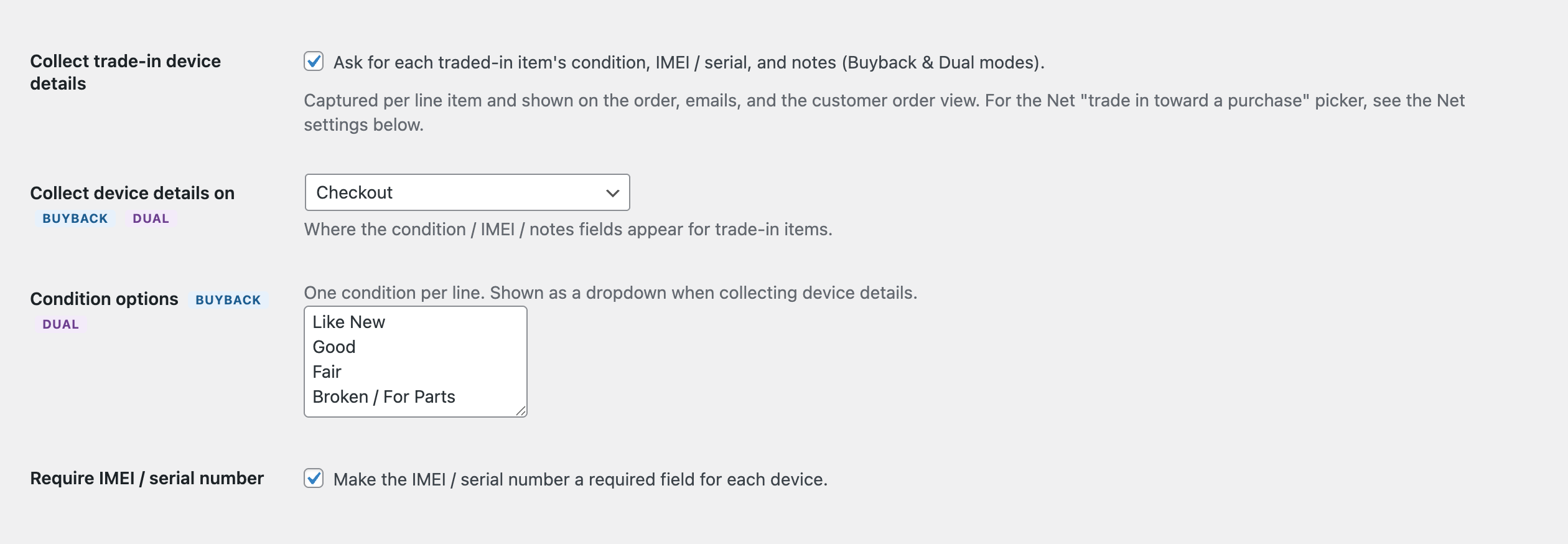
Device Details is a PRO feature. On the free plan the four settings below are still visible on the Checkout tab, but they are grayed out with a PRO badge and an upgrade link, and no fields are ever shown to customers.
Turning it on#
Everything lives on Gyta Buyback → Settings → Checkout, in the Checkout Options section. There are four settings:
- Collect trade-in device details — the master switch. Off by default. Described in the admin as "Ask for each traded-in item's condition, IMEI / serial, and notes (Buyback & Dual modes)."
- Collect device details on — where the fields appear. Choose Checkout (the default), Cart, Single product page, or All (product page, cart & checkout).
- Condition options — one condition per line, shown to the customer as a dropdown. Ships with Like New, Good, Fair and Broken / For Parts.
- Require IMEI / serial number — makes the IMEI field mandatory for each device. Off by default.
These four rows only appear when your Store Mode is Buyback only or Dual. Switch the store to Net settlement and they disappear, because Net has its own trade-in picker.
How it works day to day#
- On the product page (placement Single product page or All) a small card headed "Tell us about your device" appears just above the add-to-cart button. Whatever the customer enters rides along with the item into the cart.
- In the cart (placement Cart or All) the card appears underneath each item's name, with a reminder that reads "Click ‘Update cart’ to save." Nothing is stored until that button is pressed.
- At checkout (placement Checkout or All) a Device Details heading appears below the order notes field, with one card per cart line, each labeled with the item's name. On the block cart and block checkout the same cards render in the order summary area: the condition dropdown saves the moment you pick a value, and the IMEI and notes fields save when you leave them.
- If Require IMEI / serial number is on and any line is still blank, the order is blocked with the message "Please provide the IMEI / serial number for each device."
- When the order is placed, each answer that is not blank is written to the line item as Condition, IMEI / Serial and Customer Notes.
Good to know#
- Buyback and Dual modes only. In Net settlement mode the fields never render — the "trade in toward a purchase" selector is a separate feature.
- The cart and checkout placements ask about every line. Only the product-page placement checks whether a product is actually trade-in eligible. Once a cart counts as a trade-in cart, the cart and checkout cards are drawn for every item in it — and if you require the IMEI, every line needs one before the order can go through. In practice that is fine, because Dual mode keeps carts homogeneous: a cart is either all-buy or all-trade-in, never both, and adding one kind to a cart holding the other is rejected. In Buyback mode every cart is a trade-in cart by definition.
- One card per cart line, not per unit. A line with a quantity of 2 gets a single condition, IMEI and note. With the product-page placement, two identical devices with different answers become two separate lines automatically (the details are part of the cart item). With the cart or checkout placement they stay one line of quantity 2 sharing a single set of details.
- The block cart and block checkout follow the Checkout placement only. The block fields load when the placement is Checkout or All. Choosing Cart or Single product page gives you fields on the classic templates but nothing at all on a block-based cart or checkout.
- Blank answers store nothing. Empty fields are skipped rather than saved, so orders never show an empty "Condition:" row.
- Condition quiz pricing replaces the Condition dropdown. If you also run Condition quiz pricing, no separate Condition line is stored on the order — the quiz's own Condition assessment line item meta is the condition record. On the classic product page, cart and checkout the condition select is dropped from the device card as well; on the block cart and block checkout the dropdown is still drawn, but whatever is picked there is discarded when the order is created. IMEI and notes are still collected as normal.
- The customer-facing label and the order label differ. The notes box is labeled "Notes (optional)" on the form but appears on the order as Customer Notes.
- The details are deliberately visible. They are stored as ordinary line-item meta so WooCommerce renders them everywhere it renders item meta — order screen, emails, thank-you page, My Account and packing slips.
- Changing your site language is safe from 1.6.1 on. Earlier versions stored the details under the translated label, so switching locale could orphan them. They are now stored under fixed, language-independent keys, and orders placed before the upgrade are still read and displayed through a fallback.
- Clearing the Condition options box restores the defaults. If the setting is left empty, Like New / Good / Fair / Broken / For Parts come back automatically. Blank lines are ignored.