
Quote Expiry
Lock an offer for a set number of days, with a countdown for the customer.
Quote Expiry#
Quote Expiry promises the customer that the price you quoted will be honored for a fixed number of days — and then holds you both to it. Every trade-in order is stamped with a deadline the moment it is placed, the customer sees "Your offer of $120.00 is locked until March 14, 2026" on the order screen and in their emails, and once that date passes the plugin refuses to accept their approval until you send a revised offer.
It is worth turning on if devices reach you slowly, or if used-device prices move enough that a quote from three weeks ago is no longer one you want to pay. It gives customers a reason to ship promptly, and it stops an old quote being approved at a price you would no longer offer.
Quote Expiry is a PRO feature. On the free plan the setting is shown but disabled with a PRO badge and an upgrade link, and no order is ever stamped with a deadline no matter what value is stored — so nothing is shown to the customer and no approval is blocked.
Turning It On#
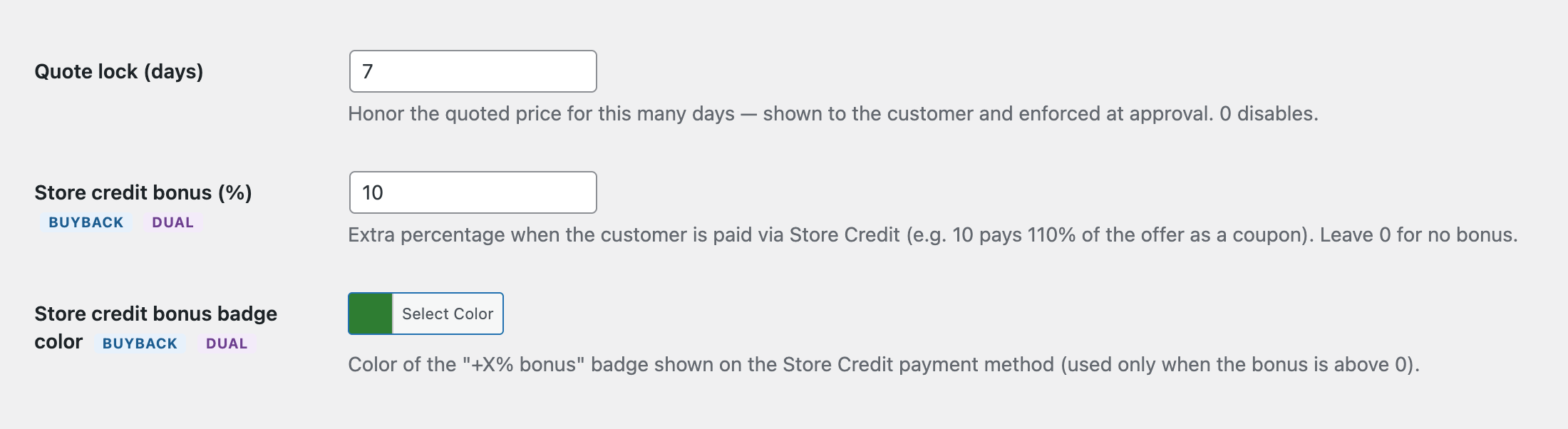
Go to Gyta Buyback → Settings → Checkout and find Quote lock (days). Enter the number of days you want to honor a quote for — 14 and 30 are common — and save.
- The field accepts whole numbers only, with a minimum of 0.
- The default is 0, which turns the feature off: no deadline is stamped, so no countdown is shown and no approval is blocked.
- Setting it back to 0 later only stops new deadlines being stamped. Orders that were already stamped keep their deadline, still show the line, and are still blocked once it lapses.
How It Works Day to Day#
- At checkout the order is stamped with a deadline of exactly that many days from the moment the order is placed.
- The customer sees the lock line on the order-received (thank you) page, on the View Order page in their account, in their order emails, and on each card in the My Trade-ins account tab. The amount quoted in that line is the order total as it stands, so after a re-quote it shows the revised figure.
- You see it too. On the WooCommerce order edit screen, just under the re-quote panel, the plugin prints "Quote locked until …" with the date and time.
- If the deadline passes, the same lines switch to an expiry message: the customer is told the offer expired and that you will send an updated offer, and your order screen shows a red warning that approval is blocked.
- If the customer tries to approve anyway, the approval is refused, they get an error notice explaining why, and the order status is left untouched.
- Sending a revised offer from the re-quote panel re-locks the price for a full fresh window, counted from the moment the revised offer goes out.
Good to Know#
- The clock starts at checkout, not at inspection. The deadline is a plain countdown from when the order was placed, so the shipping time the customer takes eats into the window.
- Only orders placed after you switch it on get a deadline. The stamp is applied at checkout (classic and block checkout), so orders that already existed — and orders you create by hand in the admin — start with no lock, no countdown and no block. Sending one of them a revised offer from the re-quote panel does stamp it, from that moment on.
- Changing the number of days does not move existing deadlines. Each order keeps the deadline it was stamped with; the new value applies to orders placed (or re-quoted) from that point on.
- Expiry blocks approval, not decline. A customer can still decline a lapsed offer, and the decline is processed exactly as normal (including automatic return labels, if you have those turned on). Nothing is auto-cancelled and no order status changes on its own when a quote expires — the order simply sits there until you re-quote.
- You are alerted the first time a customer is blocked, not when the quote lapses. The plugin adds an order note and emails your WordPress admin address once per expiry. Sending a revised offer resets that guard, so a later lapse alerts you again.
- Only trade-in orders are stamped. In Buyback store mode that is every order; in Dual and Net modes, ordinary sales orders are skipped.
- The deadline is an exact moment, not end of day. A 14-day lock set at 3:12 pm expires at 3:12 pm on day 14. The customer-facing line shows only the date in your store's date format; the admin line shows date and time.