
Trade-In Catalog & Product Roles
Decide which products are for sale, for trade-in, or both — once, site-wide.
Run Dual or Net mode and need some products to sell, others to accept as trade-ins, and maybe a few to do both? This page shows how to tag that once — site-wide — so you never have to re-do it when you switch modes.
This applies to the premium Dual and Net store modes. Buyback mode ignores roles entirely (the whole store is a trade-in), so you can skip this page if you're on the free default.
The two roles (sellable / tradeable)#
In Dual and Net modes, every product has two independent roles:
- Sellable — the product can be bought.
- Tradeable — the product can be traded in.
A product can be one, the other, or both. You set this once, and it works in both Dual and Net — no re-tagging when you switch modes.
There are two ways to control roles: by category (recommended) or per product. You can mix both.
When to use it#
- You sell new accessories and buy back used phones → mark accessories sellable, phones tradeable.
- You're a refurbisher who sells and buys the same models → mark those products as both.
- You drop new devices into a "we buy these" category and want them accepted for trade-in automatically → use category control.
Option 1: by category (recommended)#
Best when whole categories share a role — you set it once and new products inherit it automatically.
How to set it up:
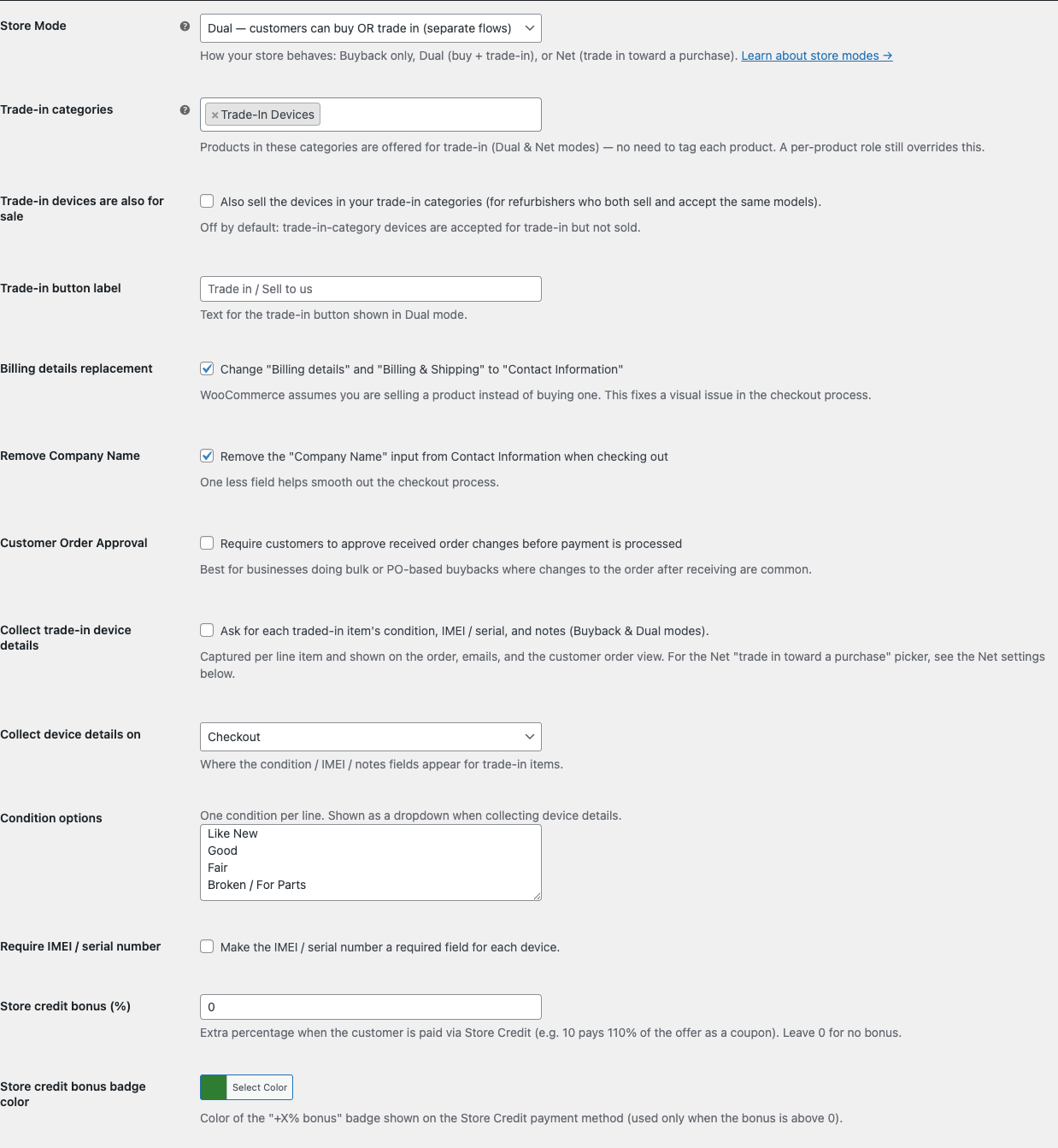
- Go to Gyta Buyback → Settings → Checkout.
- Find Trade-in categories (a multiselect of your product categories).
- Select the categories whose products should be offered for trade-in.
Products in those categories — and their sub-categories — are automatically tradeable. Drop a new product into one of those categories later and it becomes a trade-in device automatically. No per-product work.
Option 2: per product (Quick Edit & Bulk Edit)#
Use this to override the category default for a specific product.
On the product editor — and in the Products list via Quick Edit and Bulk Edit — there's a Gyta: Buy / Trade-in field with four choices:
- Store default — follow the categories above.
- Sell only — sellable, not tradeable.
- Trade-in only — tradeable, not sellable.
- Both — sellable and tradeable.
An explicit choice here overrides the category default for that product. Everything left on Store default keeps following your Trade-in categories.
Tip: Need to flip 40 products at once? Select them in the Products list, choose Bulk Edit, and set Gyta: Buy / Trade-in for all of them in one go.
Trade-in devices you also sell#
On the Gyta Buyback → Settings → Checkout tab there's a checkbox: Trade-in devices are also for sale (default off).
- Off — devices in your trade-in categories are accepted for trade-in but not sold.
- On — those devices are also purchasable. Turn this on if you're a refurbisher who sells and buys the same models.
This is a shortcut for the common "we buy and resell the same phones" case, so you don't have to mark each one Both by hand.
How each mode uses roles#
The same roles drive different behavior depending on your store mode:
- Dual: Sellable → an Add to cart button. Tradeable → a Trade in button. Both → both buttons appear.
- Net: Sellable products are the new items customers buy. Tradeable products appear in the trade-in credit selector (and aren't purchasable unless also sellable).
- Buyback: Roles are ignored — the whole store is a trade-in.
Related#
- Store Modes overview — pick Buyback, Dual, or Net.
- Dual mode — sell and trade in from one storefront.
- Net mode — trade in toward a purchase and pay the difference.