
Net Reconciliation
Settle the difference when an inspected device is worth more or less than quoted.
Net Reconciliation#
In Net Settlement mode the customer gets trade-in credit at checkout, before you have ever seen the device. Net Reconciliation is what you use when the device finally lands on your bench and grades differently than the customer claimed — a cracked screen they did not mention, or a phone in better shape than they thought.
You open the order, type in what the trade-in bundle is actually worth, and the plugin settles the gap for you: a pay-link invoice for the shortfall when the device is worth less, or a store-credit coupon when it is worth more. The original order's line items, totals, taxes and payment records are never edited — the plugin only adds order notes and a reconciliation record to it.
Net Reconciliation is a PRO feature. On the free plan the order screen shows a locked preview of the panel with an upgrade link instead of the reconcile form.
Turning it on#
There is no on/off switch — the reconcile panel appears automatically on any order that was flagged as a net trade-in at checkout. That flag is stored on the order itself, so the panel keeps working on those orders even if you later switch the store to another mode. The one thing you do choose is how a higher grade is paid back.
- Go to Gyta Buyback → Settings → Checkout.
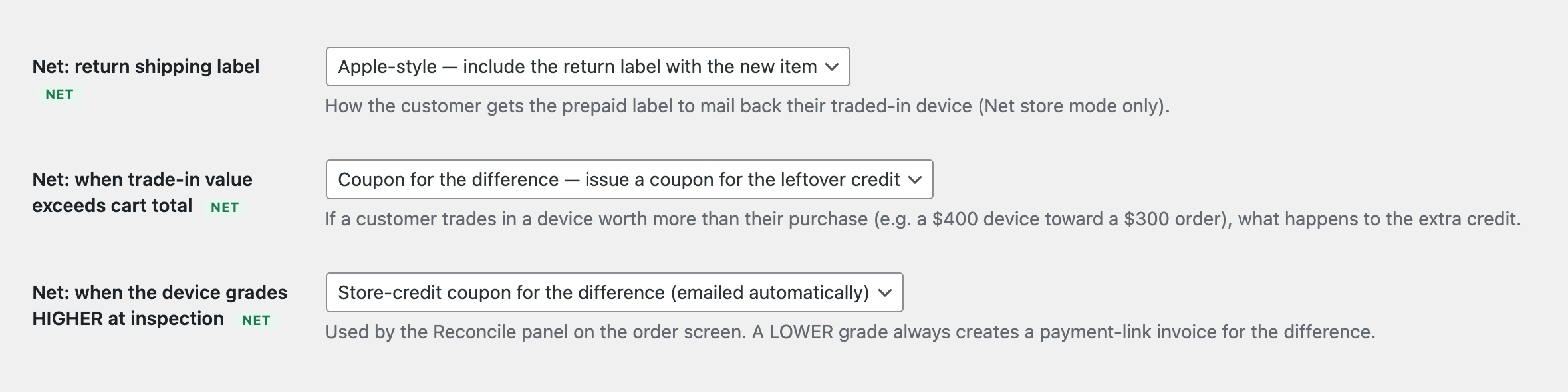
- Set Store Mode to Net settlement — trade in toward a purchase (pay the difference) if you have not already — the Net-tagged settings are only shown while that mode is selected.
- Find Net: when the device grades HIGHER at inspection and pick one:
- Store-credit coupon for the difference (emailed automatically) — the default.
- Just note it on the order — I'll settle it manually — you handle the refund or transfer yourself.
- Save.
A lower grade is not configurable: unused excess credit is clawed back first, and anything still owed goes onto a payment-link invoice.
How it works day to day#
- The customer checks out, gets their trade-in credit, and mails the device back.
- The device arrives and you inspect it.
- Open the order in WooCommerce → Orders. Below the order details you will see a Trade-in reconciliation panel showing the credit given at checkout.
- Enter the Actual value (whole trade-in bundle). The field is pre-filled with the credited amount, so if everything checks out you can leave it as-is.
- Optionally fill in Reason (shared with the customer) — for example "screen cracked, not disclosed".
- Click Reconcile. The plugin compares the two figures and settles the difference.
Once reconciled, the panel turns into a read-only summary showing what was credited, what the device was actually worth, and — depending on which way it went — a link to the difference order with its current status, or the extra-credit coupon code that was issued.
When the device is worth less#
The plugin works down the cheapest route first:
- If the customer was issued an excess-credit coupon at checkout (because their trade-in was worth more than their purchase) and they have not spent it yet, that coupon is reduced — or cancelled outright — to cover the shortfall. If that covers everything, you are done and nothing is collected.
- Any remainder becomes a separate difference order in Pending payment, containing a single fee line named "Trade-in adjustment (order #…)" with your reason appended.
- The plugin then tries, on a best-effort basis, to charge the customer's saved payment method from the original order.
- If that does not work, WooCommerce's Customer Invoice email is sent instead, carrying a pay link the customer can settle with any gateway.
When the difference order is later marked Processing or Completed, a note is added to the original order confirming the reconciliation is settled.
When the device is worth more#
On the default coupon setting, a single-use store-credit coupon for the difference is created and sent to the customer as a friendly note ("Good news — your device inspected better than quoted!"). The code is prefixed TRADE-, is limited to one use, and is tied to the customer's billing email address. The code also shows in the reconciliation summary on the order.
On the manual setting — or if the coupon could not be created for any reason — the plugin only records a note telling you how much the customer is owed, and you settle it yourself by refund, transfer, or coupon.
Good to know#
- An order can only be reconciled once. After you click Reconcile the form is replaced by a summary — there is no undo, so double-check the figure before submitting.
- You reconcile the whole bundle, not each device. If the customer traded in three phones, you enter one combined value for all three. The field label says so explicitly.
- The reconcile form only appears on Net trade-in orders where credit was actually given. If the customer removed the credit before paying, there is nothing to reconcile and no form.
- "Credit given" is what the customer really received — the trade-in discount applied to the order plus any excess-credit coupon issued at checkout, not the raw quote.
- Excess credit is only clawed back if it is completely unused. Once the customer has redeemed that coupon it is left alone, and the full difference goes onto the invoice instead.
- Auto-charging the saved card rarely fires, and is never promised to the customer. It needs a registered customer (not a guest), and the gateway the original order was paid with must support saved cards and already hold a token for that customer. The pay-link invoice is the reliable path.
- The difference order is a real WooCommerce order. It shows up in your order list and reports as a pending order until it is paid.
- Your reason only reaches the customer when a difference order is raised — it is appended to the fee line they pay. On a matching or higher grade, or when unused excess credit covered the whole shortfall, it stays as an internal note on the order.
- Amounts within half a cent count as a match. The plugin adds a "nothing to settle" note and stops there — but the order is still marked reconciled, so it is a one-shot either way.
- A blank, non-numeric or negative value is rejected. Nothing is settled, a note is added to the order saying the reconciliation was not saved, and the form stays on screen so you can correct the figure and try again.
- The original order's money is never altered. Every settlement happens on a separate order or coupon — the paid order only gains order notes and the reconciliation record, so its line items, totals and tax records stay untouched.