
Store Modes
Choose how your store handles buybacks, sales, and trade-ins — Buyback, Dual, or Net.
Store Modes#
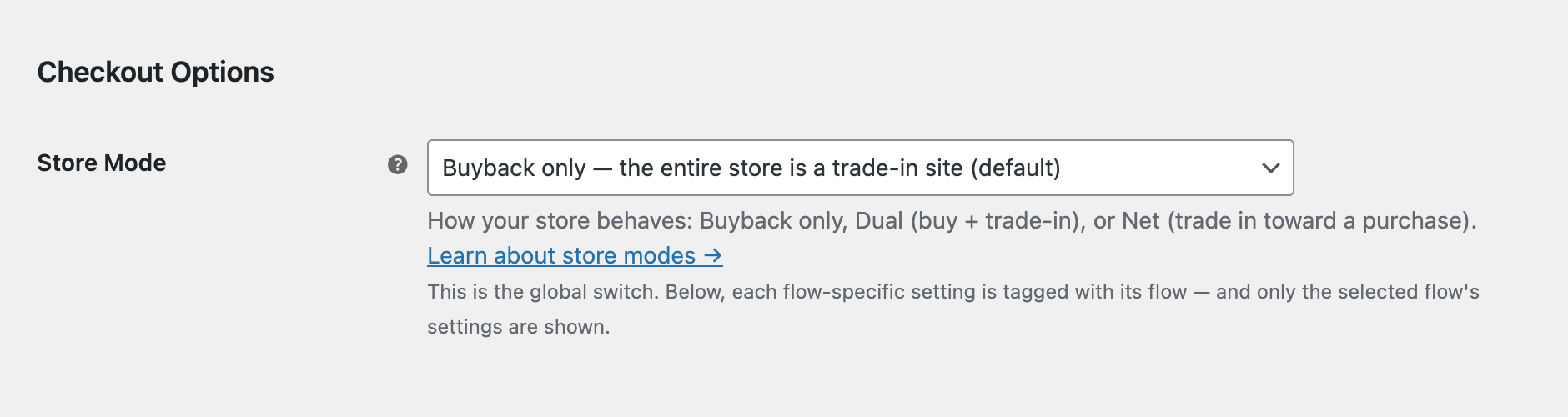
Gyta Buyback runs in one of three store modes, set at Gyta Buyback → Settings → Checkout → Store Mode. The mode decides whether your store only pays customers for devices, also sells products, or lets customers trade an old device in toward a new one. Pick the one that matches how you operate — most stores only ever need the default.
Compare the modes#
| Mode | Best for | Money flow | In one line |
|---|---|---|---|
| Buyback only (free, default) | Pure buyback / recycling (Gazelle, Decluttr style) | You pay the customer | The whole store is a trade-in site — customers sell you devices. |
| Dual (premium) | Refurbishers and resellers | Purchase carts charge; trade-in carts pay | Sell products and buy trade-ins side by side — each cart is one or the other. |
| Net settlement (premium) | Upgrade programs (Apple, Samsung style) | Customer pays the difference | Buy a new item, apply trade-in credit for the old one, pay only the gap. |
Dual and Net settlement require a premium license. Buyback only works on the free version.
Choosing a mode#
- Only buying devices from customers? Use Buyback only.
- Selling and buying through one store, each cart being one or the other? Use Dual.
- Letting customers trade an old device toward a new one and pay the difference? Use Net settlement.
You can switch modes at any time from Gyta Buyback → Settings → Checkout. Review your product categories after switching so each product plays the role you expect.
Set the mode#
- Go to Gyta Buyback → Settings → Checkout.
- Find the Store Mode setting.
- Choose Buyback only, Dual, or Net settlement.
- Save. On Dual and Net, use the Trade-in categories setting to control which products become trade-in items.
Learn more#
- Buyback Only — the free default, where the whole store pays customers for devices.
- Dual — sell products and buy trade-ins from one storefront.
- Net Settlement — trade an old device in toward a new purchase and pay the difference.
- Trade-In Catalog — how products become trade-in items.