
Dual — Buy + Trade-In
Sell products and accept trade-ins from the same store.
Dual (Buy + Trade-In)#
Dual mode is for stores that both sell and buy. If you're a refurbisher, reseller, or run a mixed catalog — selling new accessories and refurbished devices while also buying used gear from customers — Dual lets you do both from one storefront.
Dual is a premium store mode. (Buyback is the free default; Dual and Net are premium.)
When to use it#
Choose Dual if you:
- Sell products and buy devices back from customers.
- Run a mixed catalog — some items are for sale, some you want to acquire.
- Are a refurbisher or reseller who lists new stock alongside trade-in offers.
If you only buy devices, use Buyback (the default). If customers should trade an old device toward a new one and pay the difference, see Net.
How it works#
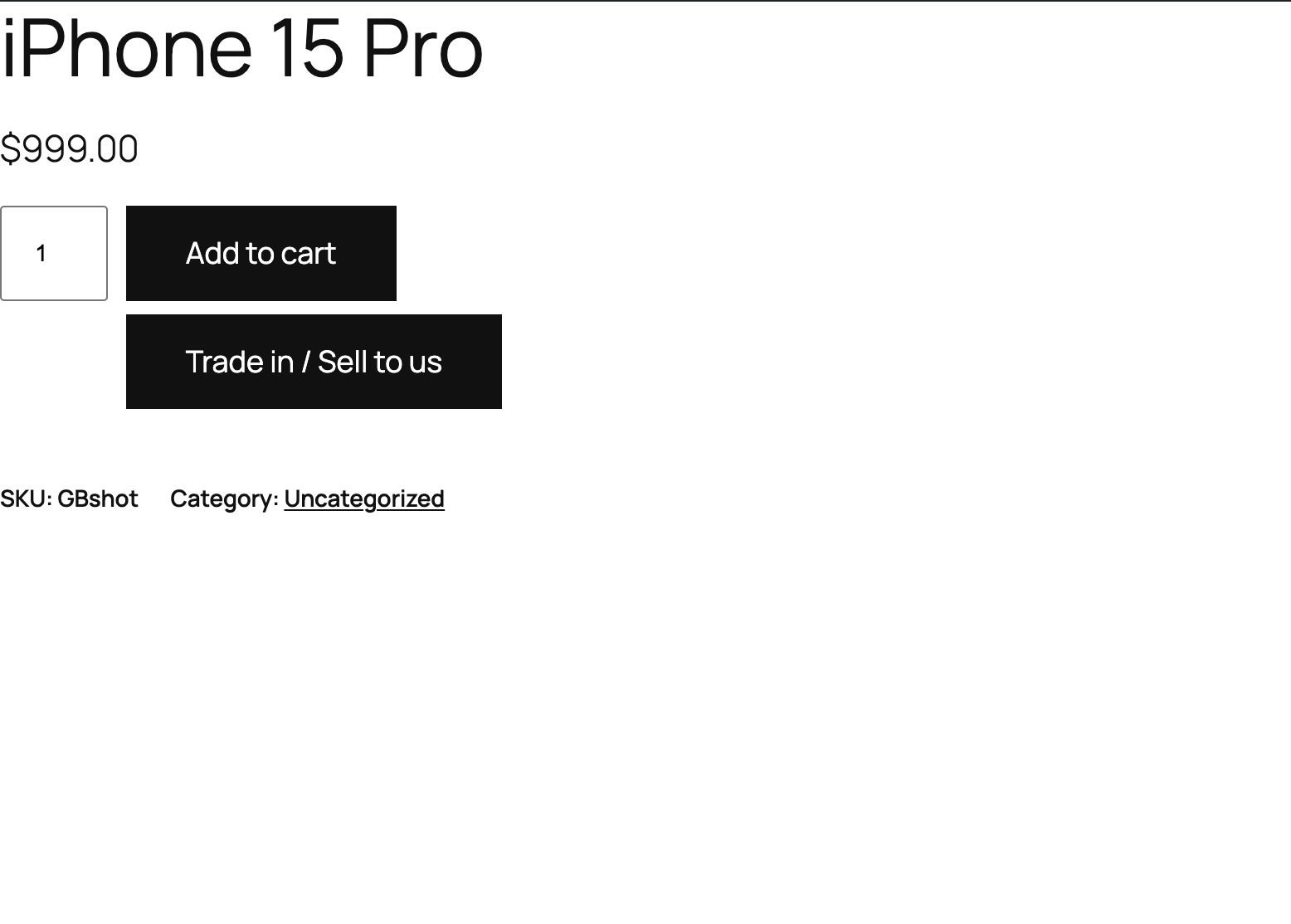
Each product shows the right button for its role:
- Add to cart — a normal sale. The customer buys it and pays you.
- Trade in / Sell to us — a payout. The customer sells it to you and you pay them, exactly like Buyback mode. (The label is customizable — see below.)
- Both buttons — the customer can either buy the item or sell you their own.
Which button a product shows is controlled by the Trade-In Catalog — by product category, with an optional per-product override.
One flow per cart#
A single cart is either a purchase or a trade-in — never both. The plugin keeps the two flows separate and blocks mixing them:
- A sell product checks out as a normal WooCommerce purchase — the customer pays you.
- A trade-in product checks out as a payout — you pay the customer.
To do both, the customer completes one cart, then starts a new one for the other.
Set it up#
- Go to Gyta Buyback → Settings → Checkout tab.
- Set Store Mode to Dual.
- Designate which products are trade-ins using the Trade-In Catalog — assign by category, or override on individual products.
- (Optional) Set the trade-in button text at Gyta Buyback → Settings → Checkout → Trade-in button label.
Related#
- Store Modes overview — compare all three modes.
- Net (Trade in toward a purchase) — apply trade-in credit toward a new device and pay the difference.
- Trade-In Catalog — decide which products show which button.