
Condition Quiz
Apple-style instant quotes — the price adjusts as the customer answers.
Condition Quiz#
The condition quiz replaces "one product variation per condition" with a short assessment. You price the product once — as if the device were perfect — then write a handful of questions, and each answer moves the offer up or down by a percentage. The customer sees the quote recalculate on screen as they tick the answers, the way Apple and Gazelle trade-in pages work.
It is worth turning on when your catalog would otherwise explode into dozens of near-identical variations (powers on / screen cracked / battery health), or when you want the offer to feel like a real quote rather than a dropdown pick. Turning it off leaves your existing variation pricing exactly as it was.
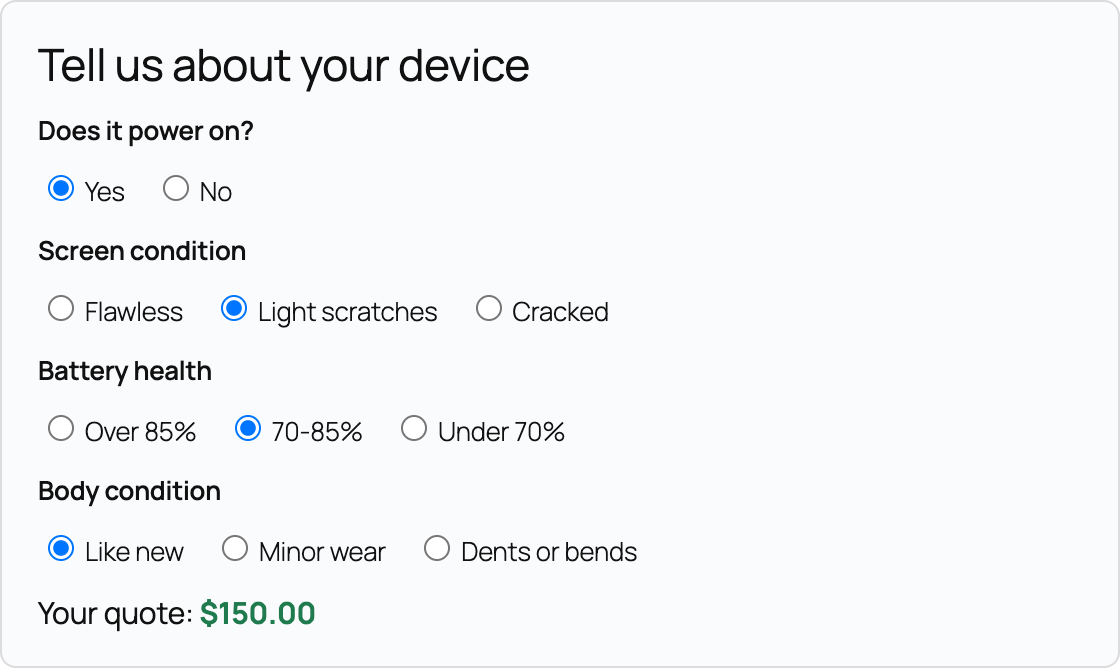
The condition quiz is a PRO feature. On the free plan the settings stay visible but are locked with a PRO badge, and the quiz never runs on the storefront.
Turning It On#
Go to Gyta Buyback → Settings → Checkout tab and set two options:
- Condition quiz pricing — the on/off switch. Off by default.
- Quiz questions — the questions themselves, one per line.
Then make sure each trade-in product (or variation) is priced at what you would pay for a flawless device. That price becomes the starting point the percentages work from.
Writing Your Questions#
Each line is one question: the question label, then each answer with its percentage, all separated by the pipe character.
Does it power on? | Yes: 0 | No: -40
Screen condition | Perfect: 0 | Scratched: -15 | Cracked: -35
Negative percentages reduce the offer and positive percentages increase it. Every selected percentage is added together first, then applied to the base price once — nothing compounds. So a $200 device answered Yes (0%) and Cracked (−35%) quotes $130, and answers totalling −25% quote $150.
What The Customer Sees#
- The questions appear on the product page in a box headed "Tell us about your device", inside the add-to-cart form just above the button (and below the device-details card, if you collect those too).
- As soon as every question has an answer, a "Your quote:" line appears underneath and updates with each change. On a variable product it stays hidden until a variation is chosen, then follows that variation's price.
- Trying to add the item without answering everything is refused with the notice "Please answer the device-condition questions to get your quote."
- The quoted amount — not the catalog price — is what appears on the cart and checkout lines, with each question and its answer listed under the item.
On The Order#
Every completed quiz is saved to the order line as Condition assessment, written as a one-line summary with the questions separated by a middle dot — Does it power on?: Yes · Screen condition: Cracked (−35%). Answers worth 0% show no percentage. That summary is a snapshot taken at the moment of the quote, and it is what stands in for the recorded condition of the item (the separate free-text Condition value is not saved while the quiz is on).
Good To Know#
- A question needs at least two answers. An answer with no colon, no label, or a percentage that is not a plain number is dropped, and if fewer than two valid answers are left the whole line is silently skipped — write -15, not -15%.
- An empty Quiz questions box does not disable the quiz. If the field is blank the plugin falls back to a built-in example set ("Does it power on?" and "Screen condition"). To stop the quiz, untick Condition quiz pricing.
- The quote can never go below zero. Percentages that add up past −100% floor the offer at 0 rather than going negative.
- Editing your questions never rewrites past orders. The answered labels and percentages are stored with the order, so old quotes keep the wording and the math that were live when they were taken.
- Customers cannot tamper with the price. The browser only ever sends which answer was picked; the percentages and the arithmetic live on the server and the quote is recalculated there.
- The quiz hides the Condition dropdown. If you also use Collect trade-in device details, its Condition select disappears while the quiz is on so customers are not asked twice — IMEI / serial and notes still appear.
- Dual-mode listing buttons stop adding to the cart directly. With the quiz on, the trade-in button (Trade in / Sell to us unless you renamed it) in a shop or category listing (and the
[wcpti_tradein_button]shortcode) links to the product page instead, because the answers have to be collected first. In Buyback mode the listing buttons are WooCommerce's own — they still point at the cart, and an add from there is simply refused with the notice above until the customer opens the product page. - Block-theme add-to-cart buttons are blocked in Buyback mode. Store API adds carry no quiz answers, so they are rejected with the same "answer the device-condition questions" message; the customer has to open the product page themselves. Dual-mode Store API adds are always ordinary purchases, so they pass through untouched.
- Dual mode only quizzes trade-ins. The box renders on any product you have marked as trade-in eligible, but the answers are only read for trade-in adds — an ordinary purchase of the same product ignores them and is neither priced nor blocked by the quiz.
- Net settlement mode asks inside the credit selector. The questions appear once the customer picks a device — and reset if they pick a different one — and simple products are listed as "up to $X" since the real figure depends on the answers. Variations still show their own price. Apply trade-in credit is refused with the same notice until every question is answered.