
Resale & Margin Reports
Turn received devices into sellable stock, with margin and VAT margin-scheme reporting.
Resale & Margin Reports#
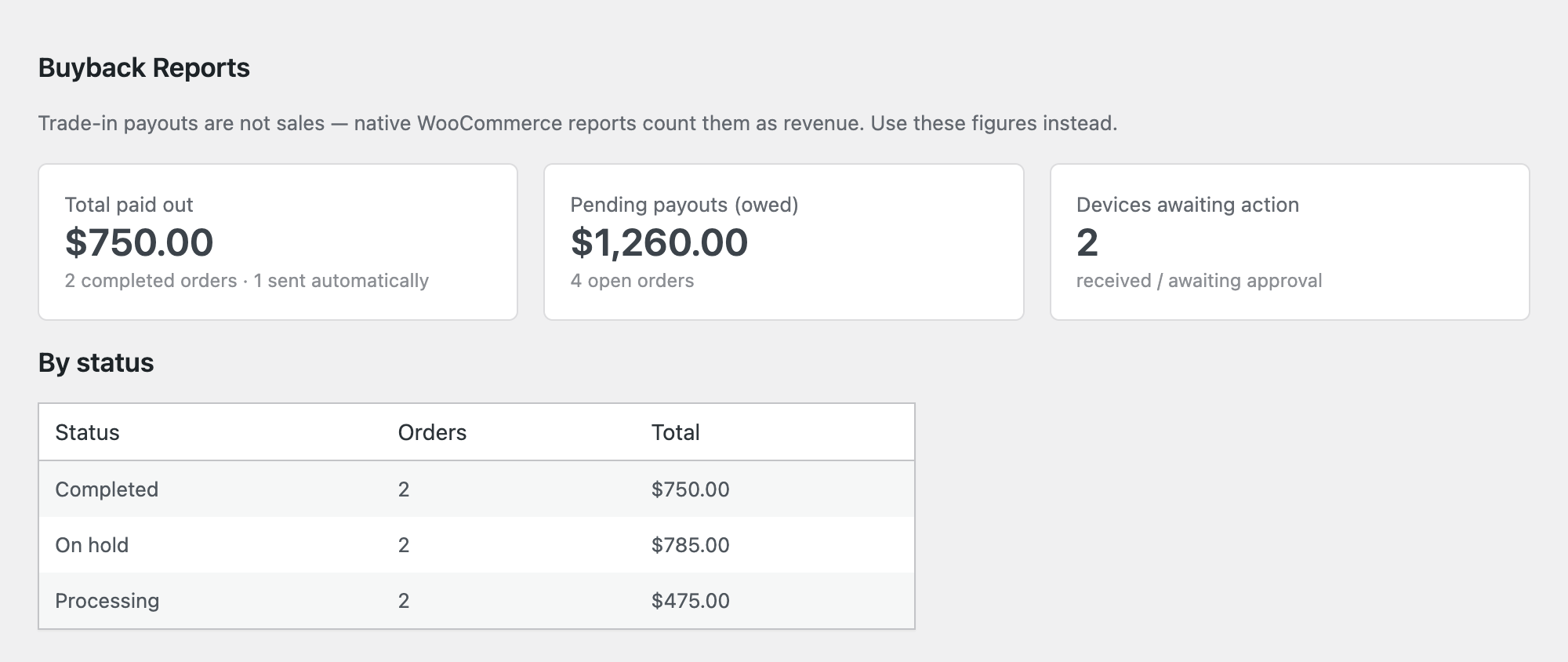
WooCommerce's own sales reports count trade-in payouts as revenue, so they tell you almost nothing useful about a buyback business. The Reports tab replaces them with the three figures you actually run on — how much you have paid out, how much you still owe, and how many devices are sitting on the bench waiting for you to do something.
The same tab also closes the loop on the other half of the business: once a device has arrived, a single order action turns it into sellable stock with its buy price recorded as cost. From then on the report shows what your shelf is worth at cost and what margin you have actually realized on the devices you have resold. If you are an EU or UK second-hand dealer, you can also flag that stock as VAT margin-scheme goods so the paperwork matches.
Reports, resale conversion and VAT margin-scheme flagging are all PRO features. Free users see an upgrade prompt on the Reports tab instead of the figures, and the "Convert trade-in to resale stock" order action does not appear.
The Reports tab#
Go to Gyta Buyback → Settings → Reports. There is nothing to switch on — the tab reads your existing trade-in orders. It shows three cards:
- Total paid out — the order total of every Completed trade-in order, with the number of completed orders underneath. If the Payouts engine has paid any trade-in orders, it also tells you how many went out automatically — that count covers every trade-in order with a successful payout, not only the completed ones.
- Pending payouts (owed) — money you still owe. This counts orders that are On hold, Waiting for customer approval, Customer approved or Processing.
- Devices awaiting action — a count of orders that are On hold or Waiting for customer approval, i.e. the device is with you and the ball is in your court.
Below the cards, a By status table breaks every trade-in order down by order status with a count and a total, so you can see where the queue is bunching up.
Converting a received trade-in into resale stock#
Open the trade-in order in WooCommerce, pick "Convert trade-in to resale stock" from the Order actions box, and run it. For each device on the order the plugin does one of two things:
- If you have sold this exact device in this exact condition before, it restocks the existing resale product — stock goes up by the quantity received, and the unit cost becomes the weighted average of the old stock and the new units.
- If not, it creates a new draft product named "Device — Condition" (just the device name if no condition was recorded), with stock management on and the received quantity in stock. The draft has no price: you set your asking price and publish it yourself.
Either way the plugin records the cost basis on the product, links the product back to the source order, and leaves an order note listing exactly what it created or restocked. The IMEI, if you captured one, is stored as product meta — it is never used as the SKU.
How margin is calculated#
The cost of a device is what you agreed to pay for it. On buyback and dual orders that is the order line total, scaled so the device costs add up to the final order total — which is what makes re-quoted orders come out right, since a re-quote changes the order total rather than the individual lines. On net-settlement orders it is the per-device quote, scaled by the reconciled value if you ran the Reconcile panel.
When a resale product is bought by a customer, the plugin freezes that unit cost onto the sold line item. The Resale margin section of the Reports tab then shows:
- Resale inventory (at cost) — what the devices currently in stock cost you, plus a unit count.
- Realized resale margin — revenue minus cost on devices you have actually sold.
- A per-device table with condition, unit cost, in stock, sold, revenue, margin, and whether the item is flagged margin scheme. Each device name links straight to the product editor.
VAT margin scheme#
Turn this on at Gyta Buyback → Settings → Checkout with the VAT margin scheme checkbox. Two optional settings sit beside it: Margin-scheme categories, a multi-select that treats every product in those categories as margin-scheme goods, and Margin-scheme note, the wording shown to customers (leave it empty to use the built-in EU/UK default).
With it on, a VAT margin scheme checkbox also appears on the General tab of every product edit screen, and resale products created by the converter are flagged automatically — devices bought from consumers are the textbook margin-scheme case. Flagged items then show a small "Margin scheme (used goods)" line in the cart and at checkout, the note appears on the thank-you page and in order emails, an indicator appears on the admin order screen, and a VATMarginScheme column is filled in on the accounting CSV you download from the Payouts tab.
Good to know#
- Margin-scheme flagging does not change your tax rates. It flags, labels and documents — WooCommerce tax calculation is deliberately left exactly as you configured it. This is the paper trail for your accountant, not a tax engine.
- The report's VAT column reads the per-product checkbox only. A device that counts as margin-scheme because of its category is still treated as margin scheme everywhere the customer sees it, but shows a dash in the report table.
- Converting an order is a one-time action. Once an order has been converted the action disappears from the Order actions list and re-running it does nothing, so you can never accidentally double-stock a device.
- New resale products are created as drafts with no price. Nothing goes on sale until you price it and publish it yourself.
- "Same device, same condition" is what triggers a restock. Matching is on the source product plus the condition label, so an iPhone 13 in "Good" and one in "Fair" become two separate resale products.
- Restocking averages the cost. Adding units to an existing resale product replaces the unit cost with a weighted average across old and new stock — individual devices no longer carry their own buy price. If the existing product is at zero stock, there is nothing to average against and the incoming unit cost simply becomes the new cost.
- Realized margin only looks back 365 days and only at Processing and Completed sales. The window is bounded on purpose: without it the report would walk every paid order your store has ever taken. Developers can change it with the
wcpti_margin_window_daysfilter. - The cost snapshot is written at checkout. A resale device sold through an order you create by hand in wp-admin will not carry a cost, so it will not appear in the realized-margin figures.
- Figures are cached for 15 minutes. Any order status change or product save clears the cache immediately, so the tab is never more than one action out of date — but a change made outside those paths can take up to 15 minutes to show.
- In Dual and Net store modes only flagged trade-in orders are counted. The flag is written at checkout, so trade-in orders taken before you upgraded to a version that sets it will not appear. In Buyback mode every order is counted, because every order is a trade-in.
- Cost is written to WooCommerce's native Cost of Goods Sold too, but only if you are on a WooCommerce version that has the feature and you have enabled it. The plugin always keeps its own cost record either way, so the report works regardless.
- The figures are built by paging through your data, not by a summary table. The paid / pending / awaiting figures walk every trade-in order in the store; the margin figures walk every product carrying a cost basis plus the paid orders inside the lookback window. On a very large store the first load after the cache expires is the slow one; subsequent loads come from the cache.